Tutorial #09 of 13
8 min
Daily Workflow
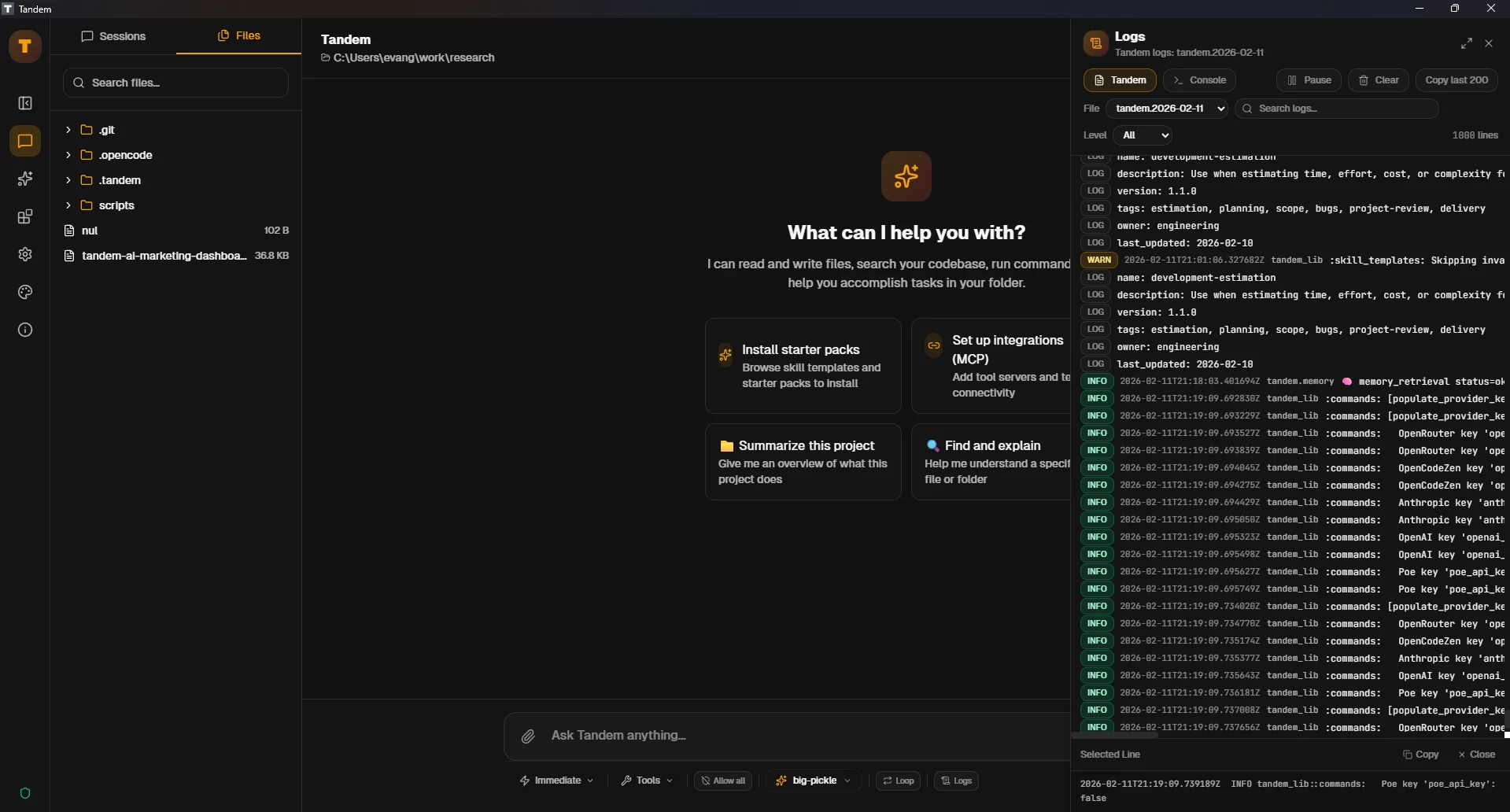
View Logs and Console
TUTORIAL GOAL
Learn to view conversation logs and monitor LLM tool calls in the console for debugging and transparency.
Click to view fullscreen
→ Why This Matters
Logs and console views provide visibility into what Tandem is doing behind the scenes. Understanding these tools helps you debug issues, verify tool execution, and gain confidence in AI operations.
→ What You Will Do
- Access conversation logs
- Monitor LLM tool calls in real-time
- Use console for debugging and verification
→ Step-by-Step Guide
1
Locate the Logs panel in the Tandem UI
2
Ask Tandem to perform a task (e.g., 'List all Python files in this directory')
3
Open the logs to see the conversation history
4
Switch to the Console view to see LLM tool calls
5
Observe which tools the AI used and their outputs
6
Use this information to understand the AI's reasoning process
✓ Verification Checklist
- You can locate and open the Logs panel
- You can view conversation history in logs
- You can access the Console to see LLM tool calls
- You understand what information each view provides
⚠ Common Mistakes
- •Ignoring logs when troubleshooting unexpected behavior
- •Not checking console to verify which tools were called
- •Assuming AI actions without verifying in logs/console