Tutorial #04 of 13
9 min
Safe Execution & Planning
Choose the Right Agent Mode
TUTORIAL GOAL
User can switch between Execute and Plan modes based on task complexity and risk.
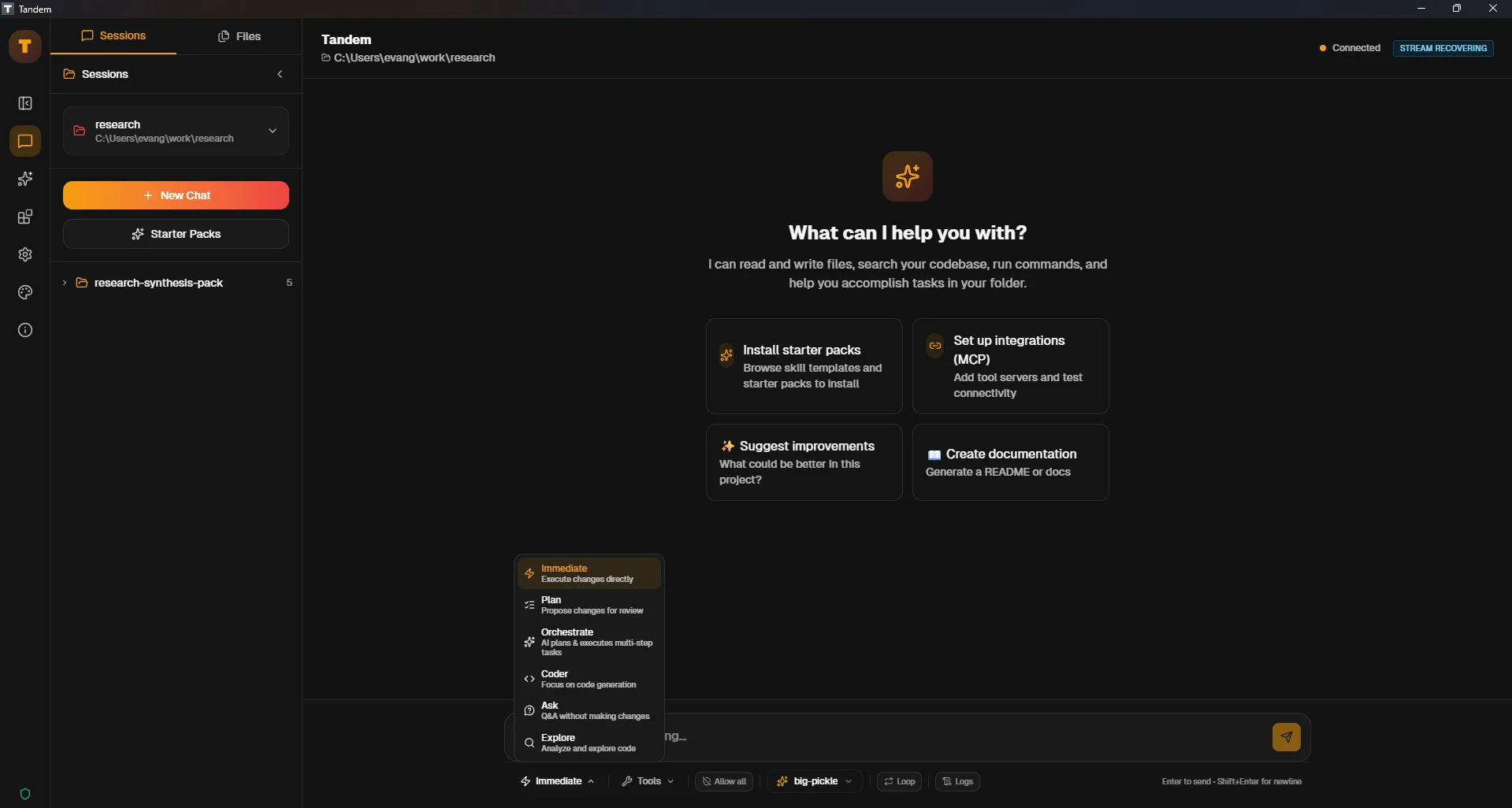
Click to view fullscreen
→ Why This Matters
Execute mode is fast for simple tasks. Plan mode gives you a safe preview for complex or risky multi-step changes. Choosing the right mode saves time and prevents mistakes.
→ What You Will Do
- Understand Execute vs Plan modes
- Switch modes in the UI
- Choose appropriate mode for different task types
→ Step-by-Step Guide
1
Locate the agent mode selector in the UI (usually near the chat input or settings)
2
Try Execute mode: Ask for a simple, safe change (e.g., 'Add a comment to line 5 of README.md')
3
Observe that the change happens immediately after approval
4
Switch to Plan mode
5
Ask for a multi-file change (e.g., 'Update version numbers in package.json and README.md')
6
Notice operations are staged in the Execution Plan panel instead of executing immediately
✓ Verification Checklist
- You can locate and use the mode selector
- Execute mode works for simple tasks
- Plan mode stages operations without executing
⚠ Common Mistakes
- •Using Execute mode for complex multi-file changes (hard to review)
- •Staying in Plan mode for trivial edits (unnecessary overhead)
- •Forgetting to switch modes when task complexity changes