Tutorial #01 of 13
8 min
Getting Started
Choose Workspace and Connect AI
TUTORIAL GOAL
Select a workspace and complete a valid provider setup that is ready to send prompts.
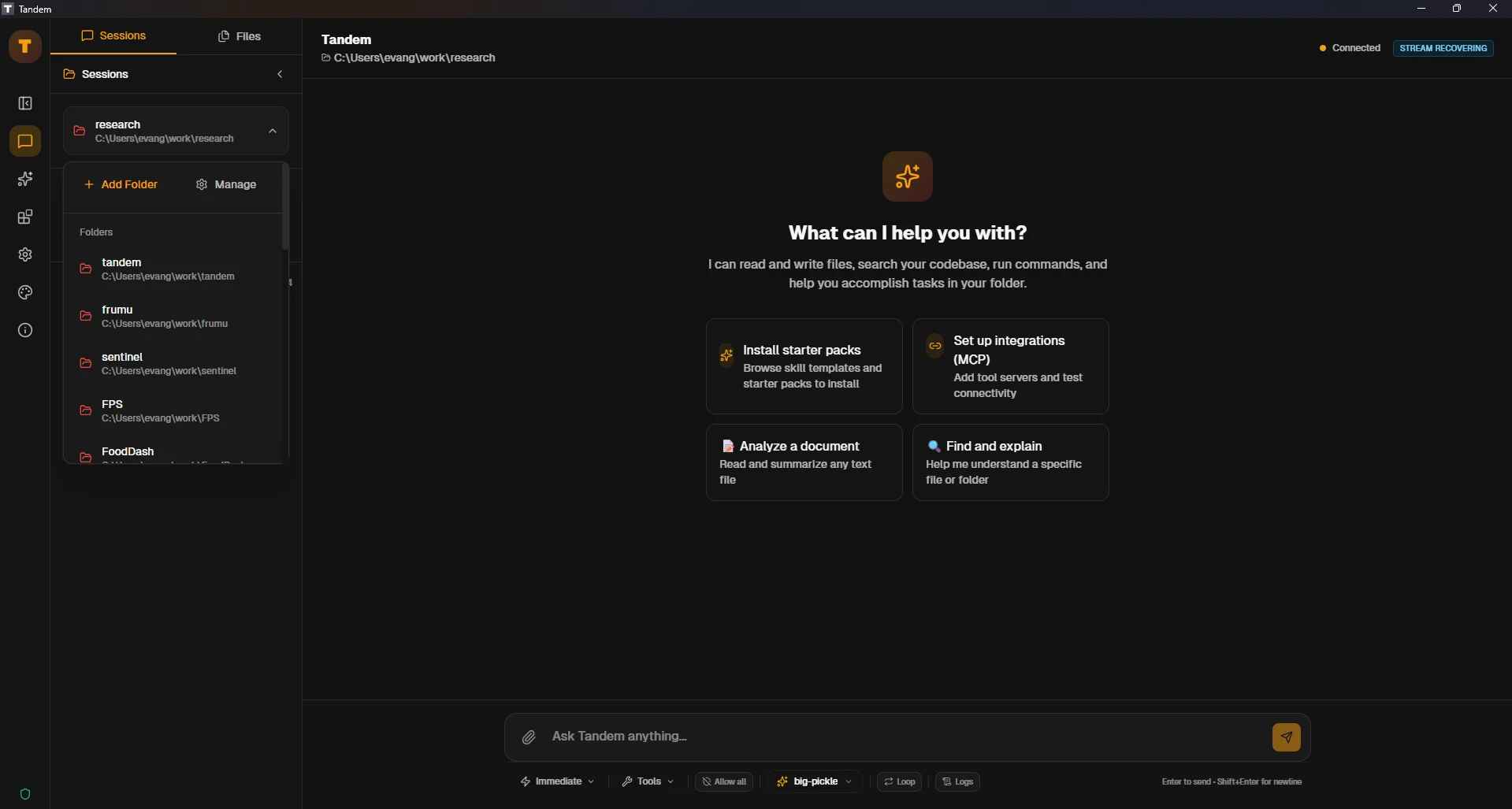
Click to view fullscreen
→ Why This Matters
Tandem is local-first. It only works inside folders you explicitly choose, and AI responses require at least one configured provider or local model.
→ What You Will Do
- Choose a workspace folder
- Open provider settings
- Add credentials (or local provider setup)
- Confirm provider connection in UI
→ Step-by-Step Guide
1
Launch Tandem and complete onboarding step `1) Choose a folder`
2
Click `Pick Folder`, then select the project folder you want Tandem to use
3
In onboarding step `2) Connect AI`, click `Providers`
4
In Settings, choose one provider (OpenRouter, OpenAI, Anthropic, OpenCode Zen, Ollama, or compatible endpoint)
5
Enter the API key if required and save
6
Return to chat and verify provider/model selector is available
✓ Verification Checklist
- Workspace path is selected and visible in app context
- Provider is configured without error
- Chat input is enabled for normal use
⚠ Common Mistakes
- •Picking a system or restricted folder you cannot write to
- •Adding an API key with leading/trailing spaces
- •Forgetting local Ollama must be running before use