Advanced: Custom Modes
Create custom behavior profiles to restrict tools, append system prompts, and operationalize specific workflows.
→ Why This Matters
Custom Modes allow you to define specialized 'personas' for the AI. You can create a 'Research Only' mode that can't edit code, or a 'Strict Coder' mode that focuses purely on implementation. This improves safety and focus.
→ What You Will Do
- Open the Modes manager in Extensions
- Use the Guided Builder to create a 'Safe Docs' mode
- Use the Advanced Editor to inspect the JSON configuration
- Test the new mode in chat
→ Step-by-Step Guide
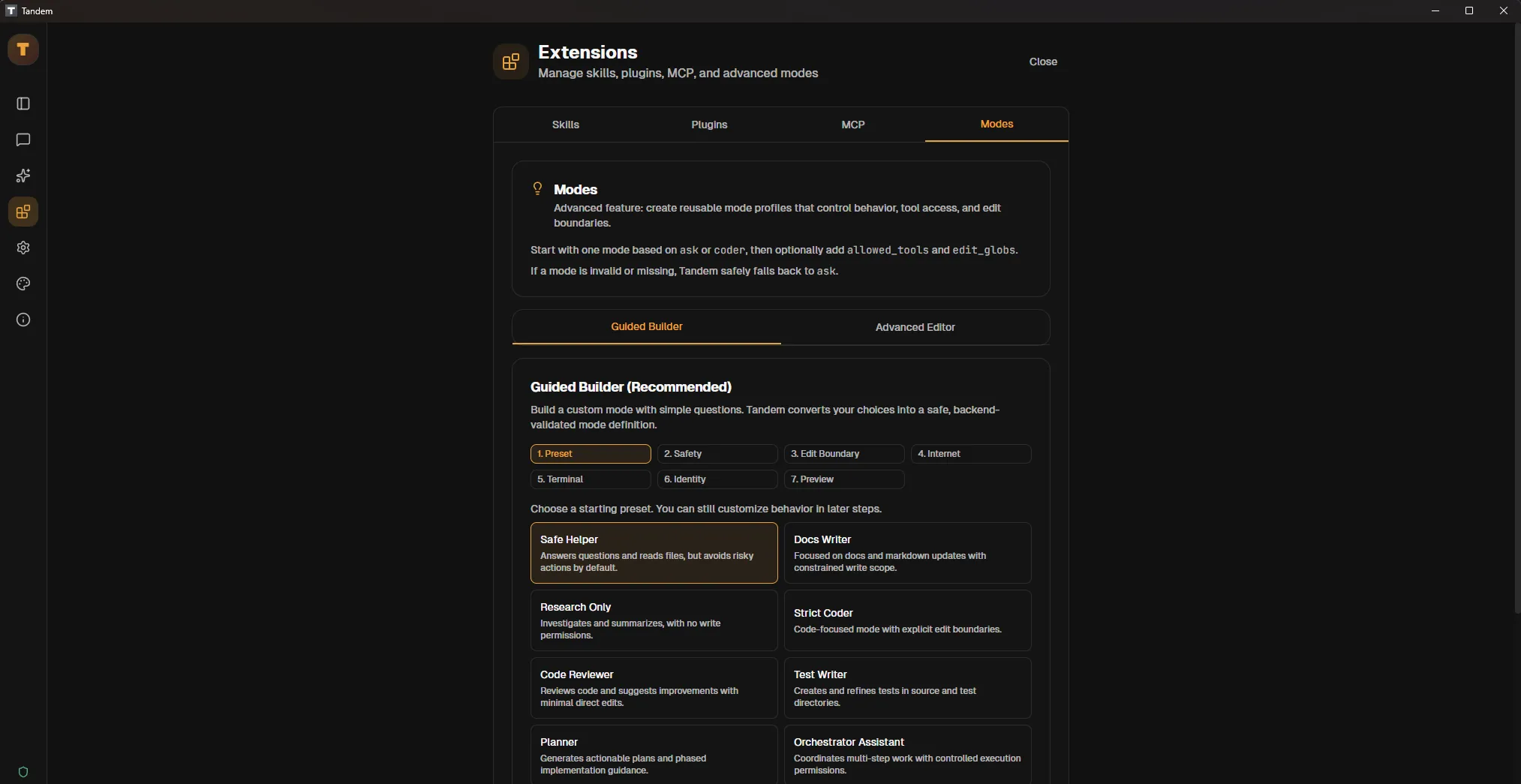
Navigate to `Extensions` -> `Modes` and select the `Guided Builder` tab
Start the wizard and choose the 'Docs Writer' or 'Safe Helper' preset (Step 1)
Follow the wizard steps to configure Safety, Boundaries, Internet, and Terminal permissions (Steps 2-5)
Name the mode 'Safe Docs' with ID `safe-docs` and choose an icon (Step 6)
Review the generated JSON configuration and click `Apply Mode` (Step 7)
Open a new chat and select 'Safe Docs' from the mode dropdown
Verify restrictions by asking for an action outside the allowed scope (e.g., editing source code)
✓ Verification Checklist
- Mode appears in the chat selector with the correct icon
- Selecting the mode updates the system prompt/behavior
- Restricted actions (like editing outside allowlist) are correctly blocked
⚠ Common Mistakes
- •Mode ID must be kebab-case (e.g., `my-mode`) and unique
- •Tool names in `allowed_tools` must match exactly
- •Edit globs are strict; only matching files can be edited